





Before you start
You need an active Google Ads account, a Google Merchant Center account with products approved for Shopping ads, and your store connected so Profit Bid can calculate order profit.
Do this in order: store + COGS → Profit Bid → Google Ads conversion upload → then create the Shopping campaign. Launching Shopping on revenue-only values first trains Smart Bidding on the wrong signal.
- Merchant Center feed approved (titles, price, availability, images, identifiers).
- Google Ads linked to Merchant Center (same business / correct customer ID).
- Purchase conversion action ready — primary action will use profit value from Profit Bid.
- COGS (or cost fields) filled in your store so profit is not zero or guessed.
Link Merchant Center to Google Ads
Shopping campaigns pull product data from Merchant Center. If the accounts are not linked, Google Ads will not list a Merchant Center account when you create the campaign.
Link from Merchant Center (send a request with your Google Ads customer ID) and approve in Google Ads under linked accounts. You cannot change the Merchant Center account on a campaign after it is created.
- Confirm products are eligible for Shopping ads destinations — not only free listings.
- Fix disapprovals (GTIN, price mismatch, landing page) before spending.
- Note your Merchant Center ID — you will select it in the campaign wizard.
Choose Standard Shopping (not PMax) to start
When Google offers Performance Max vs Shopping, pick Standard Shopping for your first profit campaign. You get product groups, clearer reporting, and an easier path to A/C/X label filters later.
Performance Max can come second once profit upload and POAS targets are stable. Campaign type matters less than feeding accurate profit values — but Shopping is the cleaner learning path.
Create the Shopping campaign
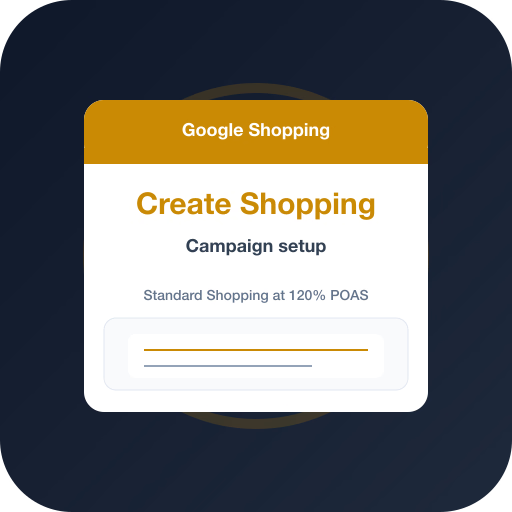
Follow Google’s create flow. Prefer Sales (or create without goal’s guidance), then Shopping, then Standard Shopping — not Performance Max.
Select the linked Merchant Center account. Optionally restrict by feed label if you run multiple feeds. Name the campaign clearly (for example: Shopping — POAS 120%).
- Plus → New campaign → Sales (or without goal’s guidance).
- Campaign type: Shopping → continue with Shopping (not Performance Max).
- Select Merchant Center account + feed label if needed.
- Campaign name: include Shopping and your POAS target for easy reporting.
Campaign settings that matter
Keep settings simple. Target the countries you sell and ship to. Languages should match your storefront. Daily budget should be enough for Google to exit learning — starving a new Shopping campaign with a tiny budget slows everything.
Under networks, many profit-focused advertisers uncheck Google search partners for cleaner query quality. Leave Google Search Network on for Shopping ads. Review local inventory ads if you only sell online — Google is expanding local defaults; filter inventory if you need online-only spend.
- Locations: countries/regions you fulfill — not “all territories” unless you ship everywhere.
- Languages: match storefront language(s).
- Daily budget: enough for ~15+ conversions / 30 days if you plan Target ROAS soon.
- Networks: Search on; consider search partners off.
- Campaign priority: leave Low unless you run overlapping Shopping campaigns on the same SKUs.
Bidding: Target ROAS at 120% POAS
With Profit Bid uploading gross profit as conversion value, Target ROAS becomes a POAS target. Set Target ROAS to 120% — that means $1.20 profit per $1 ad spend (above break-even POAS of 100%).
Google’s Target ROAS for Shopping usually needs about 15 conversions in the last 30 days at the Merchant Center / conversion level. If you are brand new, start on Maximize conversion value (or Manual CPC briefly), confirm profit values land correctly, then switch to Target ROAS 120%.
- Primary goal: Target ROAS = 120% after profit values are live.
- Do not set 120% while values are still revenue — that would be an unrealistically low revenue ROAS.
- Avoid frequent target changes in the first 7–14 days.
- Raise budget only when POAS holds near or above 120%.
Which conversion actions to use
Make the profit-weighted purchase action Primary for this campaign’s goal. That is the value Smart Bidding optimizes. Keep a revenue purchase as Secondary only if you still want a side-by-side ROAS column — do not let two primary purchase actions double-count volume.
In Google Ads → Goals → Conversions, confirm sample orders: Profit Bid profit ≈ uploaded conversion value. Mismatches usually mean missing COGS or refund timing.
- Primary: purchase with profit value (from Profit Bid).
- Secondary (optional): revenue purchase for reporting only.
- Include in “Conversions” column: profit primary only.
- Validate 3–5 real orders before scaling budget.
Keep one campaign — no brand split required
You do not need separate brand vs non-brand Shopping campaigns to start. One Standard Shopping campaign with an All products product group is enough while you validate POAS at 120%.
Later you can subdivide product groups by custom label (A/C/X from Profit Bid) or category — that is optional optimization, not a launch requirement. Shopping uses product groups, not keywords.
- Launch: one campaign, one ad group, All products included.
- Optional later: subdivide by custom_label / brand / category.
- Skip brand/non-brand campaign splits for Shopping day one.
Feed checklist before spend
Shopping performance is mostly feed quality. Fix Merchant Center issues before raising budget — bidding cannot save a weak catalog.
- Title: brand + product type + key attributes (size, color, material).
- Price and availability match the landing page.
- High-quality image; correct GTIN / MPN where required.
- Shipping and tax configured for your target countries.
Launch checklist
Publish the campaign only after Profit Bid is uploading profit values and Merchant Center shows approved products. Then leave bidding and structure alone for 7–14 days unless something is clearly broken.
- Profit Bid connected; sample conversion values match order profit.
- Merchant Center linked; products approved for Shopping ads.
- Standard Shopping campaign live; Target ROAS 120% (or interim maximize value).
- Budget funded; locations and networks reviewed.
- No daily restructuring during learning.
You vs Profit Bid
You create the campaign, budget, locations, and Target ROAS. Profit Bid calculates order profit from your store, uploads that value to Google Ads, and can sync A/C/X labels into the Shopping feed for later segmentation.
- Client: Google Ads + Merchant Center setup, campaign settings, 120% target.
- Profit Bid: profit math, conversion upload, optional POAS labels.
- Together: Smart Bidding optimizes toward profit, not cart revenue.
Who sets what
| Setting | You set in Google Ads | Profit Bid handles |
|---|---|---|
| Campaign type | Standard Shopping | — |
| Conversion value | Primary = purchase | Uploads profit amount |
| Target ROAS | 120% (POAS target) | Keeps values profit-weighted |
| Product labels | Optional filters later | A/C/X sync to feed |
| Structure | One campaign to start | — |
Step-by-step
Follow these in order — each step builds on the previous one.
- 1
Connect Profit Bid
Link your store, sync COGS, and enable profit conversion upload to Google Ads before any Shopping spend.
- 2
Link Merchant Center
Link Merchant Center to Google Ads and confirm products are approved for Shopping ads.
- 3
Create Standard Shopping
New campaign → Shopping → Standard Shopping. Select Merchant Center. Skip Performance Max for now.
- 4
Set Target ROAS to 120%
Use the profit primary conversion. Set Target ROAS to 120% (POAS target). Use maximize conversion value only until you have enough conversions.
- 5
Launch one campaign
One campaign, All products, stable budget. No brand split. Review POAS after 7–14 days.
Frequently asked questions
Common questions about this topic — tap to read answers.
Should I start with Shopping or Performance Max?
Start with Standard Shopping. You get clearer product-group control and a cleaner path to profit labels. Add Performance Max after profit upload and a 120% POAS target are stable.
What Target ROAS should I set if conversion values are profit?
Set Target ROAS to 120%. With profit as conversion value, that is a 120% POAS target ($1.20 profit per $1 spend). Break-even is 100%; 120% leaves a buffer for fees and contribution goals.
Do I need separate brand and non-brand Shopping campaigns?
No. One Standard Shopping campaign is enough to launch. Shopping matches on product data, not classic keyword brand splits. Split later by product labels or category only if volume justifies it.
When should I connect Profit Bid?
Before you launch. Connect the store, enable profit conversion upload, validate a few orders, then publish Shopping so Smart Bidding learns on profit from day one.